The HeyKube companion app disappeared from the Play Store sometime in 2024. No announcement, no archive — the app was just gone. The cube still worked over Bluetooth, but without software to talk to it, the LEDs, guided solver, and sound feedback were inaccessible. That was the starting point.
What followed was several months of work: two cube protocols, a CFOP solver, a Kociemba optimal solver, 30+ named patterns, wire-compatible simulators for both cubes, a raw BLE log inspector, Home Assistant MQTT integration and a complete set of learning aids for every stage of the Layer-by-Layer and CFOP methods. I also learned to solve a Rubik's cube along the way.
The hardware
HeyKube is a 3×3 Rubik's cube with 36 RGB LEDs (six per face), a speaker with eight built-in sounds, and a 3-axis IMU for face orientation detection. The firmware runs a Layer-by-Layer (LBL) solver internally and guides users through seven phases by lighting the relevant facelets. It communicates over BLE using a proprietary GATT service with ten characteristics.
GoCube (Particula Ltd.) is a 3×3 with global RGB LEDs and an IMU but no speaker and no firmware move queue. It pushes rotation events over BLE as the user turns the cube, and relies on the companion app to reconstruct and display state. It uses the Nordic UART Service (NUS), a generic two-characteristic serial-over-BLE profile.
Both cubes report full state over BLE. Everything else — protocol framing, state encoding, command format, capability set — is completely different.
Protocol reverse engineering
HeyKube
HeyKube uses a proprietary GATT service (b46a791a-8273-4fc1-9e67-94d3dc2aac1c) with ten characteristics: version, battery, config, cube_state, status, match_state, instructions, action, accel, and moves.
The key characteristic is cube_state. On every move, the cube pushes its full 54-facelet state as an 11-byte Lehmer-encoded permutation followed by nine nibble-packed recent move indices and a two-byte timestamp.
Lehmer coding maps a permutation of N items to its position in lexicographic order. The cube has 54 facelets but only 20 moveable pieces (8 corners × 3 orientations + 12 edges × 2 orientations). The firmware encodes the full permutation into 11 bytes using factoradic number representation — the same encoding used by some competitive speedsolving software.
# HeyKube cube_state notification — solved state, seq=0, no recent moves
cube → cube_state characteristic:
  00 00 00 00 00 00 00 00 00 08 00  00  ff ff ff ff ff ff ff ff ff  00 00
  └──────────────────────────────┘  │   └───────────────────────────┘  └──── timestamp (LE uint16)
    11-byte Lehmer state (solved:   │   9 bytes = 18 nibbles, 0xff = no moves
    byte[9] = 0x08 sentinel)        └── seq_num = 0
Decoding this is a factoradic-to-permutation conversion. The app maintains the canonical solved state as an IntArray(54) where state[i] = i (each facelet is in its home position), then decodes incoming Lehmer bytes into the full permutation:
// state is an IntArray of 54 integers [0..53].
// state[i] = j means facelet j is currently at position i.
// solved state is identity: state[i] = i.
//
// face layout (9 facelets each):
//   U = 0..8, L = 9..17, F = 18..26, R = 27..35, B = 36..44, D = 45..53
//   center facelets: 4, 13, 22, 31, 40, 49

val SOLVED_STATE = IntArray(NUM_FACELETS) { it }
Sending moves to the cube uses the instructions characteristic. The format is a one-byte header (move count + append flag) followed by move indices packed as nibbles:
# App → HeyKube: queue "R' D' R D" (beginner corner insert)
app → instructions characteristic:
  04  db  53
  │   │   └── moves 3+4: 0x5 = D (high nibble), 0x3 = R (low nibble)
  │   └─────── moves 1+2: 0xd = D' (high nibble), 0xb = R' (low nibble)
  └─────────── header: 4 moves, append = 0 (replace queue)

# App → HeyKube: flash all LEDs
app → action characteristic:  07 06
The cube executes the queued moves in order, advancing through LBL stages and firing status and cube_state notifications as it goes. The app tracks which stage the firmware reports and which stage the decoded cube state implies, reconciling them to drive the guided solve UI.
GoCube
GoCube uses NUS — two characteristics, write (6e400002-...) and notify (6e400003-...). Commands from the app are single raw bytes with no framing. Responses from the cube are wrapped packets: 0x2A prefix, length byte, type byte, payload, checksum (sum of all preceding bytes mod 256), CRLF.
# App → GoCube: request current state
app → write:  33

# GoCube → app: U (clockwise) rotation event
cube → notify:
  2a 06 01 04 00 35 0d 0a
  │  │  │  │  │  │  └──── CRLF
  │  │  │  │  │  └─────── checksum: (0x2a+0x06+0x01+0x04+0x00) mod 256 = 0x35
  │  │  │  │  └────────── padding byte
  │  │  │  └───────────── rotation data: face_color = 2 (White = U face), bit0 = 0 → CW
  │  │  └──────────────── type: 0x01 = MsgRotation
  │  └─────────────────── length: 0x06
  └────────────────────── prefix: 0x2a ('*')
Unlike HeyKube, GoCube sends rotation events rather than full state on every move. The app maintains a local copy of the cube state and applies each rotation event against it using precomputed rotation tables. A periodic GET_STATE request re-syncs ground truth to recover from any dropped BLE packets.
is GoCubeResponse.Rotations -> {
    val current = _cube_state.value ?: return
    var state = current
    for (rot in response.moves) {
        val move_idx = if (rot.cw) rot.canonical_face else rot.canonical_face + 8
        state = apply_moves(state, listOf(move_idx))
    }
    _cube_state.value = state
}
Full state, on request, arrives as 60 bytes of explicit face-color values — one byte per sticker, six blocks of nine:
# GoCube → app: MsgState solved cube (66 bytes total)
  2a 40 02
  00 00 00 00 00 00 00 00 00   ← Blue face (B), all stickers = 0x00
  01 01 01 01 01 01 01 01 01   ← Green face (F), all stickers = 0x01
  02 02 02 02 02 02 02 02 02   ← White face (U), all stickers = 0x02
  03 03 03 03 03 03 03 03 03   ← Yellow face (D), all stickers = 0x03
  04 04 04 04 04 04 04 04 04   ← Red face (R), all stickers = 0x04
  05 05 05 05 05 05 05 05 05   ← Orange face (L), all stickers = 0x05
  00 00 00 00 00 00             ← orientation bytes (IMU, ignored)
  f3 0d 0a
GoCube uses a non-standard face-color-to-face mapping (block order in MsgState does not follow U/L/F/R/B/D order), so the decoder maintains an explicit translation table:
// GoCube MsgState block index → canonical face (U=0, L=1, F=2, R=3, B=4, D=5)
val GOCUBE_BLOCK_TO_FACE = intArrayOf(4, 2, 0, 3, 5, 1)  // B, F, U, R, D, L

// GoCube sticker color byte → canonical face
val GOCUBE_COLOR_TO_FACE = intArrayOf(2, 2, 0, 3, 5, 1, 4)  // (unused, unused, U, R, D, L, B)
One thing that is not documented anywhere: GoCube has an IMU that streams quaternion orientation data at roughly 16 Hz by default. The moment you connect and enable notifications, the notify characteristic floods with MsgOrientation packets continuously. Miss the DISABLE_ORIENTATION (0x37) command on connect and the BLE log becomes unreadable in seconds and the app burns battery processing useless packets.
suspend fun initialize() {
    write_nus(build_command(GoCubeCmd.DISABLE_ORIENTATION))  // must be first
    write_nus(build_command(GoCubeCmd.GET_STATE))
    write_nus(build_command(GoCubeCmd.GET_BATTERY))
    write_nus(build_command(GoCubeCmd.GET_CUBE_TYPE))
}
Architecture
Both cube protocols sit behind a shared SmartCube interface. Capability flags per implementation gate which UI features are visible: controls that require hardware support (move queue, per-face LEDs, sounds) are automatically hidden for cubes that lack them.
interface SmartCube {
    val name: String
    val address: String
    val capabilities: Set<CubeCapability>
    val cube_state: StateFlow<IntArray?>
    val battery_info: StateFlow<Int?>
    val is_charging: StateFlow<Boolean>

    suspend fun send_instructions(moves: List<Int>, append: Boolean)
    suspend fun play_sound(index: Int)
    suspend fun set_led(face: Int, on: Boolean)
    suspend fun reset_state()
    fun handle_notification(uuid: String, data: ByteArray)
}
The BleManager handles scan, connect, GATT negotiation, and characteristic reads/writes/notifications. It exposes a SmartCube once connected. Everything above that layer — solve logic, UI, solvers — talks to the interface, never to BLE directly.
State representation
The entire app uses a single state model: IntArray(54) where index i holds the facelet that currently occupies position i. The solved state is identity (state[i] = i). Face layout:
U = 0..8
L = 9..17
F = 18..26
R = 27..35
B = 36..44
D = 45..53

Center facelets: 4(U), 13(L), 22(F), 31(R), 40(B), 49(D)
Moves are applied using precomputed 54-element rotation tables — one per move, where table[i] is the position the sticker at i comes from after the move. Applying a move is a single array index operation per facelet:
fun apply_move(state: IntArray, table: IntArray): IntArray =
    IntArray(NUM_FACELETS) { i -> state[table[i]] }
Eighteen rotation tables cover the six face moves (U/L/F/R/B/D) and their inverses. Cube rotations (x/y/z) add six more. The Kociemba solver uses a subset of these with double moves (U2, R2, etc.) generated by applying the base rotation twice.
The Solve tab
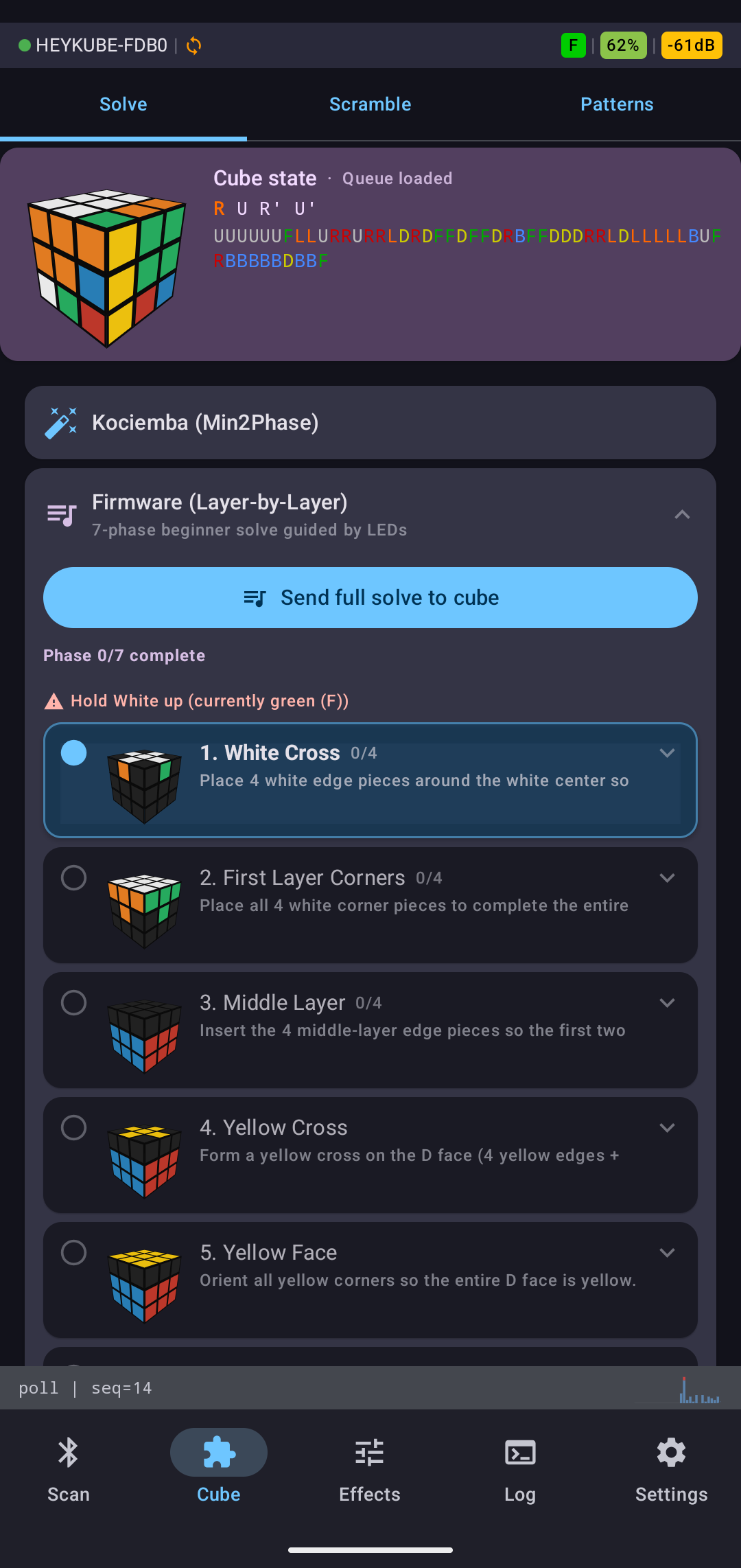
This is the core of the app. It has four distinct modes accessible from a tab row: a live 3D cube preview, the LBL guided solve, the CFOP guided solve, and the Kociemba solver.
3D and 2D cube preview
The live cube preview renders the current state of the physical cube in real time. Both a 3D isometric view and a 2D unfolded net are available; a toggle switches between them instantly. The 3D view auto-rotates to the most useful angle per LBL phase (white-on-top for phases 1–2, yellow-on-top for phases 3–7) and can be dragged freely.
The renderer projects each of the six faces using a rotation matrix applied to the face normal and corner vectors, clips faces by dot product with the view direction, and draws sticker quads with per-color fills. The current state always reflects the physical cube — there is no animation lag.
fun lbl_phase_rotation(phase_id: String): Pair<Float, Float> = when (phase_id) {
    "bottom_cross"    -> 25f to 45f   // white on top, front-right view
    "bottom_layer"    -> 25f to 45f
    "middle_layer"    -> -155f to 45f // yellow on top (cube flipped)
    "top_layer_cross" -> -155f to 45f
    "top_layer_face"  -> -155f to 45f
    "top_layer_corner"-> -155f to 30f
    "top_layer_edges" -> -155f to 45f
    else              -> 25f to 45f
}
Layer-by-Layer (LBL) guided solve
LBL is a seven-phase beginner method: Bottom Cross → Bottom Layer → Middle Layer → Top Cross → Top Face → Top Corners → Top Edges. HeyKube's firmware runs this solver internally and reports its current stage over BLE via the status characteristic. The app reads the firmware stage, cross-references it against the decoded cube state, and drives the UI accordingly.
Each phase has: - A goal description and technique overview - Common mistake warnings - Sub-steps with recognition hints (what to look for on the cube) - Algorithms in standard notation, with an alternative faster algorithm where one exists - A thumbnail showing which facelets become solved in this sub-step, highlighted in color - A direct "send to cube" button that queues the algorithm to the HeyKube firmware
The play/pause/back/forward controls step through sub-steps one at a time. This turned out to be the most useful learning aid — you can pause mid-algorithm, read the recognition hint, look at the cube, understand why this move sequence achieves the goal, then continue.
data class LblSubStep(
    val index: Int,
    val face_label: String,
    val algorithm: String,
    val alt_algorithm: String? = null,
    val recognition: String,
    val tip: String,
    val home_positions: List<Int>,  // facelets that become solved after this step
)
The home_positions list drives the thumbnail highlight: a small 2D cube net is rendered with those facelet positions colored in and everything else grayed out, giving a visual target for each sub-step.
CFOP stage detection
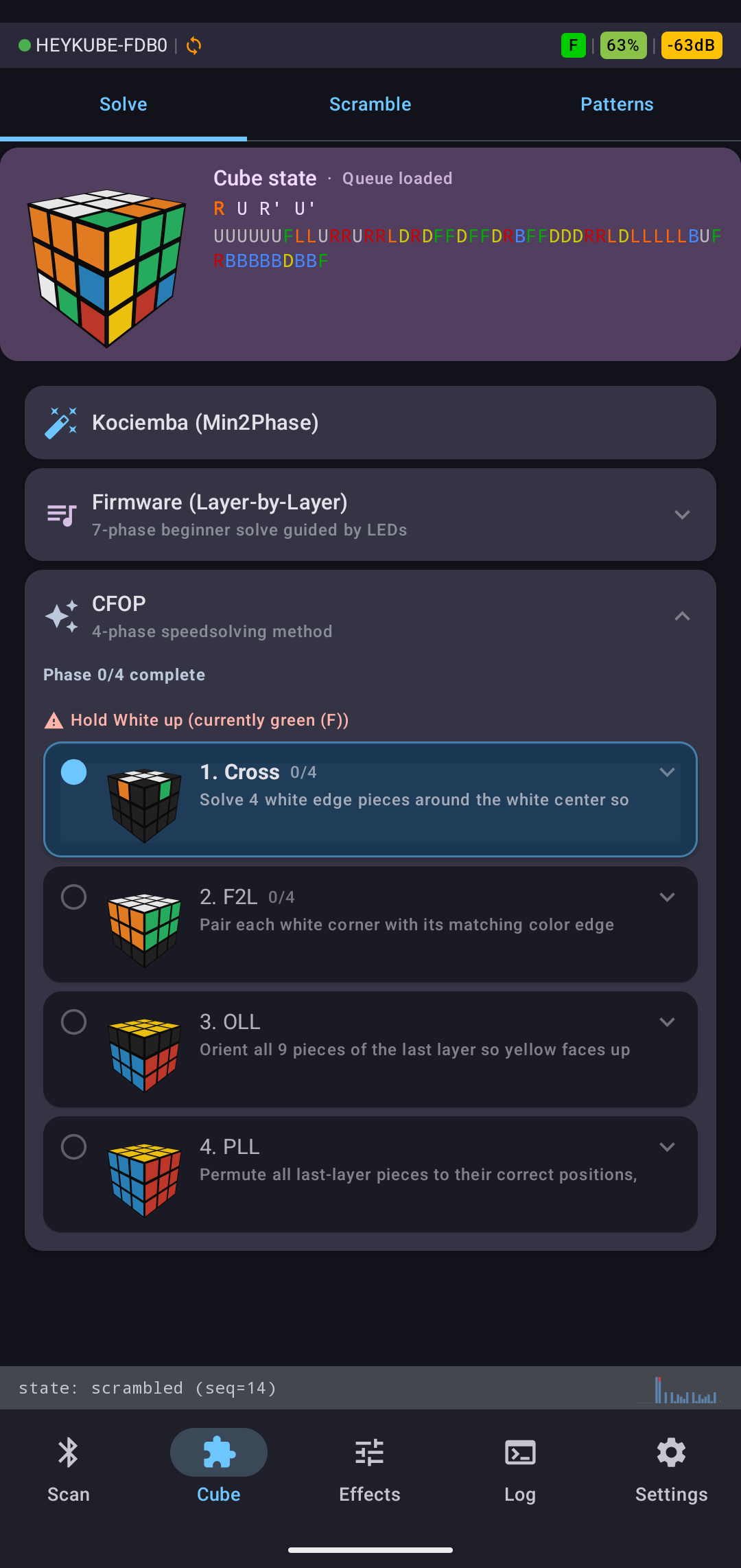
CFOP (Cross → F2L → OLL → PLL) is the standard speedsolving method. The app detects which CFOP stage the cube is currently in by inspecting the decoded state directly — no firmware involvement.
Stage detection reads center facelets (which never move) to establish face colors, then checks structural conditions: - Cross: are the four white edges in the bottom layer adjacent to their correct center? - F2L: are the four corner-edge pairs in the bottom two layers solved? - OLL: is the top face a uniform color (regardless of corner/edge orientation)? - PLL: is the cube solved?
fun analyze_cfop_stage(state: IntArray): String {
    val cross_ok = cross_edges_solved(state)
    val f2l_ok   = cross_ok && f2l_pairs_solved(state)
    val oll_ok   = f2l_ok   && top_face_uniform(state)
    val pll_ok   = oll_ok   && is_solved(state)
    return when {
        pll_ok  -> "solved"
        oll_ok  -> "pll"
        f2l_ok  -> "oll"
        cross_ok-> "f2l"
        else    -> "cross"
    }
}
For OLL and PLL, the app detects the specific case (57 OLL cases, 21 PLL cases) from the live state and surfaces the matching algorithm. Tapping the algorithm card loads it onto the cube immediately.
Kociemba optimal solver
The app includes a full implementation of Kociemba's two-phase algorithm, which finds solutions of ≤20 moves for any cube state. It runs entirely on-device in a background coroutine with no network dependency.
Kociemba works in two phases. Phase 1 searches for a sequence that brings the cube into a subset G1 where only U, D, R2, L2, F2, B2 moves are needed (edges oriented, UD-slice edges in slice). Phase 2 then solves from G1 to solved using only those moves. Both phases use iterative-deepening A (IDA) with precomputed pruning tables.
// Phase 2 allowed moves: U U2 U' D D2 D' R2 L2 F2 B2
val PHASE2_MOVES = intArrayOf(0, 1, 2, 4, 7, 9, 10, 11, 13, 16)

fun solve(state: IntArray, timeout_ms: Long = 5000L): List<String> {
    val deadline = System.currentTimeMillis() + timeout_ms
    for (max_depth in 1..20) {
        val p1 = phase1(state, max_depth, deadline) ?: continue
        // try each phase-1 solution as a phase-2 starting point
        for (solution in p1) {
            val mid = apply_moves_list(state, solution)
            val p2 = phase2(mid, 20 - solution.size, deadline) ?: continue
            return (solution + p2).map { MOVE_NAMES_KOC[it] }
        }
    }
    return emptyList()
}
The pruning tables are precomputed lazily on first use and held in memory. On a modern phone the solver finds an optimal solution in under two seconds for most scrambles.
Learning aids
Several features close the gap between watching a tutorial and doing it on a physical cube:
Facelet highlighting — the 2D net view can highlight the affected cubies for the current step, graying out everything irrelevant. This helps with recognition: you know exactly which pieces to look at.
Orientation guidance — the IMU in HeyKube reports which face is currently pointing up. The app compares this against what the current phase expects and shows a warning when the cube is oriented wrong. Beginners frequently forget to flip the cube between phases.
Step-through mode — the forward/back controls move one sub-step at a time. Combined with the algorithm sender, you can walk through an entire phase at your own pace, physically executing each step before moving to the next.
Cumulative solve progress — a progress bar tracks overall solve completion (0% scrambled → 100% solved) based on how many pieces are in their home positions. This gives a continuous feedback signal that the LBL stage labels alone don't provide.
Queue step-through — when an algorithm is loaded to the cube, the app can show each pending move one at a time as the cube executes it, so the learner can follow along move-by-move rather than watching the whole sequence run at once.
Scramble tab
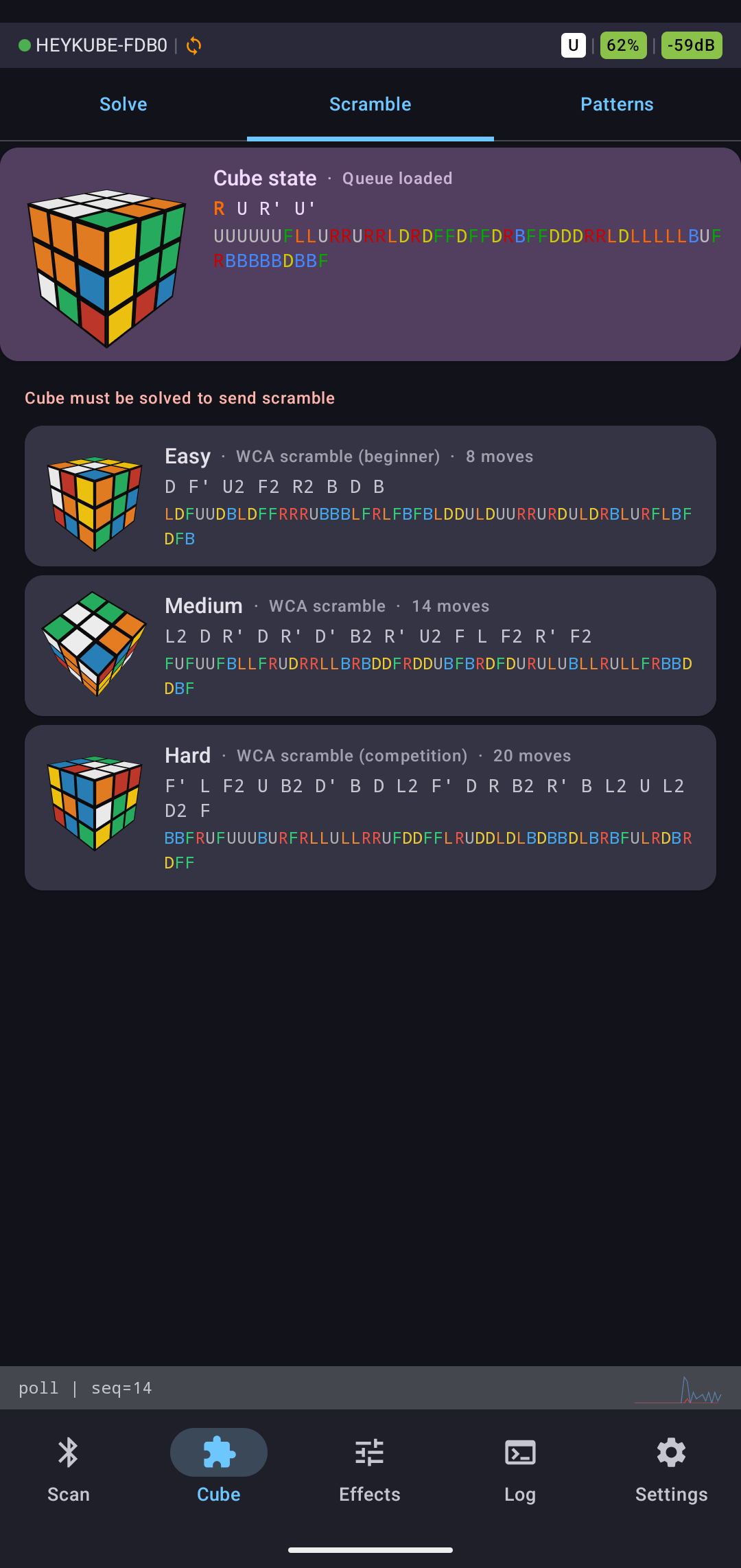
Three built-in scramble presets — Easy (8 moves), Medium (14 moves), Hard (20 moves, WCA competition standard). Tapping scrambles sends the full move sequence to the cube and displays it in standard notation. The cube executes the sequence in order.
Scrambles are generated by sampling from the 18 available moves (6 faces × {CW, CCW, 180°}), filtering consecutive moves on the same face to avoid trivial cancellations.
For HeyKube the sequence goes directly into the instruction queue. For GoCube, which has no firmware queue, the app flashes the LEDs as acknowledgement and displays the sequence as a reference — the user executes the moves manually.
Patterns tab
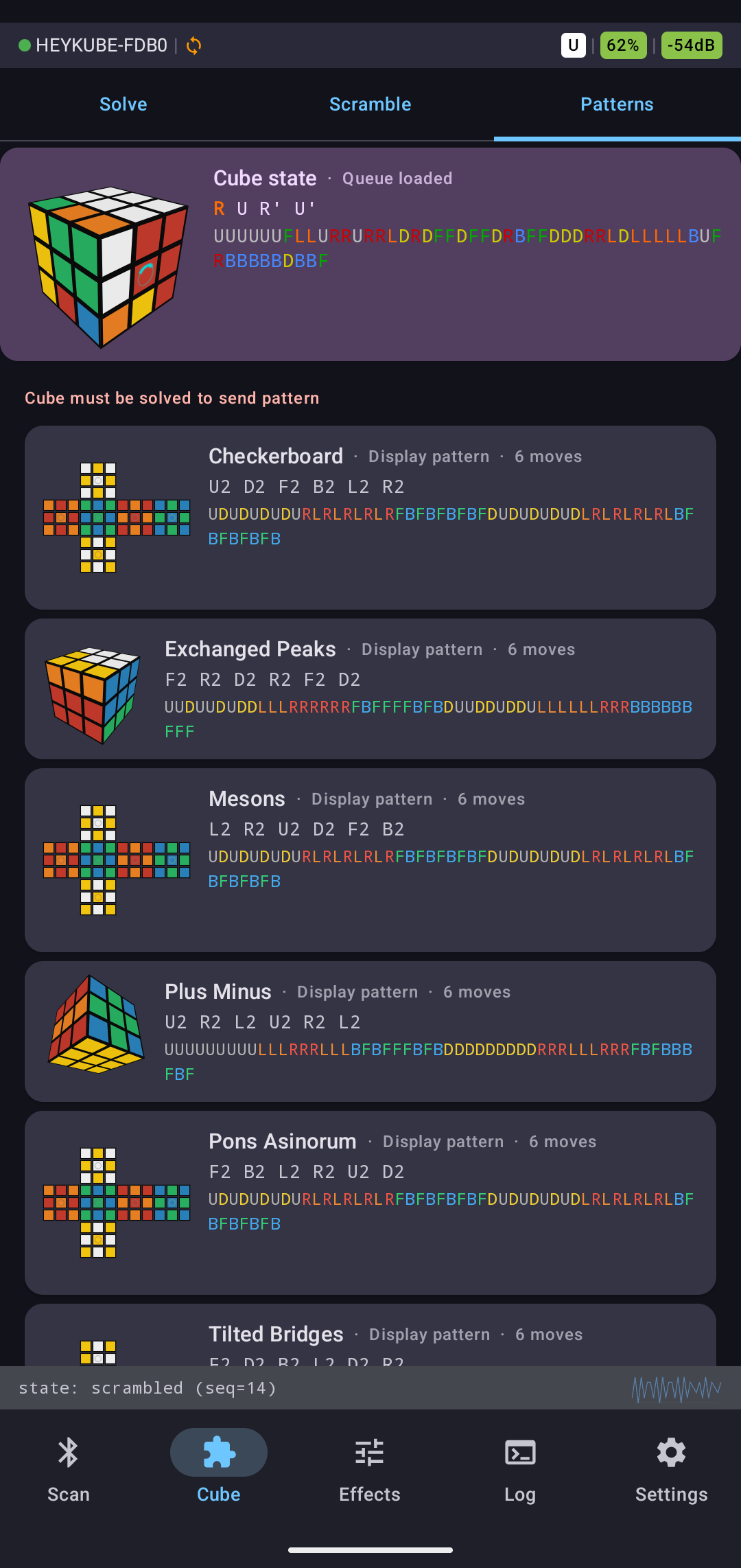
Thirty-plus named cube patterns (Checkerboard, Superflip, Pons Asinorum, Exchanged Peaks, Six Spots, Tilted Bridges, etc.), each with a thumbnail showing the target state and the full move string in standard notation. Tapping any pattern sends the move sequence directly to the cube.
Each entry is defined as a move string; the thumbnail is rendered by running the moves against the solved state and drawing the resulting 2D net:
data class PatternItem(
    val name: String,
    val moves: String,
    val category: String,
)
Patterns are organized by category (classical, dot patterns, stripe patterns, face patterns). The solve count shown per pattern is the move string length — useful for understanding which patterns are reversible in place versus which require a separate undo sequence.
Effects tab
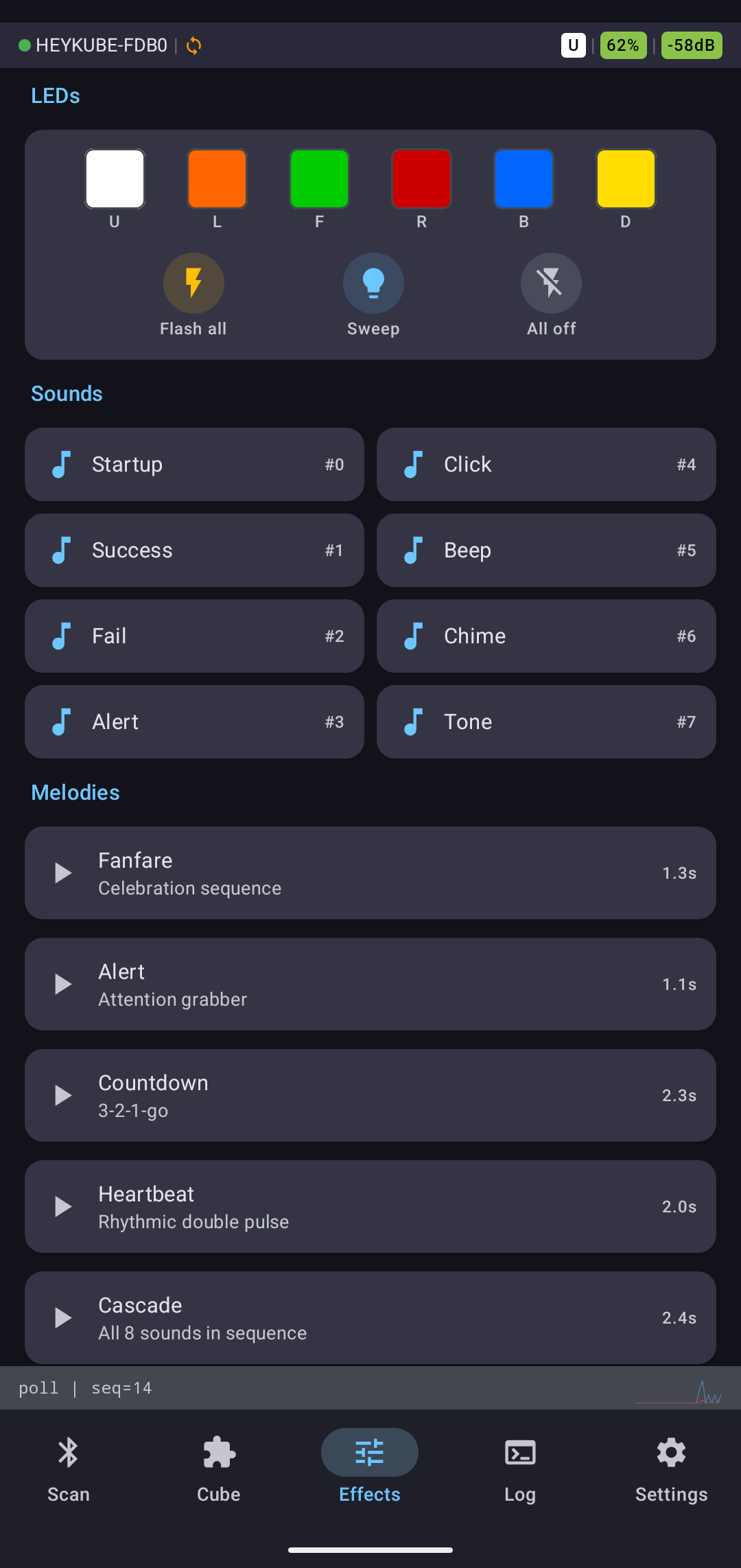
Direct hardware control without leaving the app:
- Per-face LEDs — light each of the six faces individually (U, L, F, R, B, D), flash all faces at once, run a sweep animation across all faces, or turn everything off
- Individual sounds — eight sounds built into the HeyKube firmware (Startup, Success, Fail, Alert, Click, Beep, Chime, Tone), each triggerable on demand
- Melodies — five multi-step sound sequences (Fanfare, Alert, Countdown, Heartbeat, Cascade) composed from the eight primitive sounds, played back with configurable timing
LED control uses the action characteristic. Each LED command is a two-byte write: command byte + face index.
# Light the U face (white)
app → action:  07 00

# Flash all LEDs
app → action:  07 06

# All LEDs off
app → action:  0d 24
For GoCube, which has only global LED control (no per-face addressing), all per-face commands map to a global flash/off operation.
Log tab
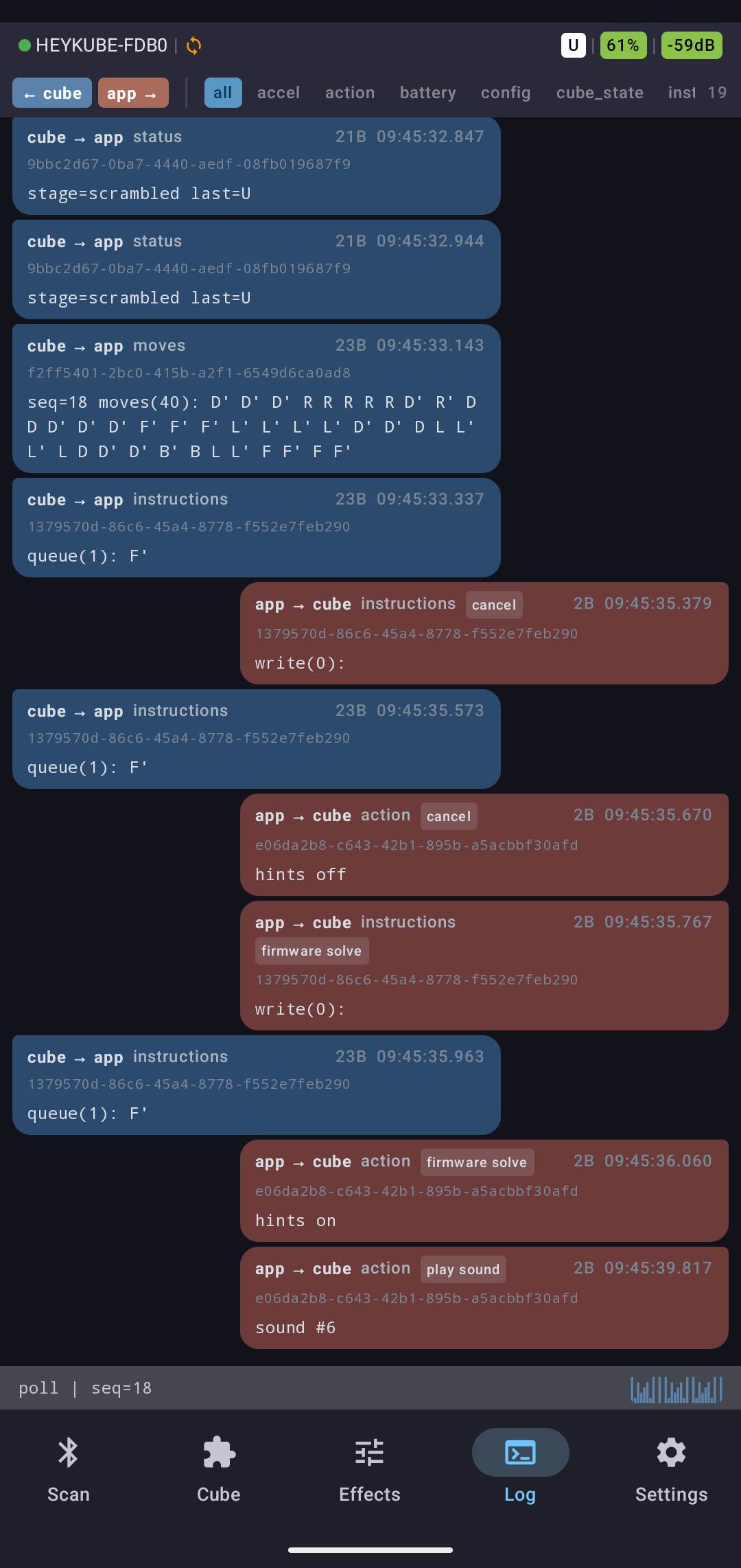
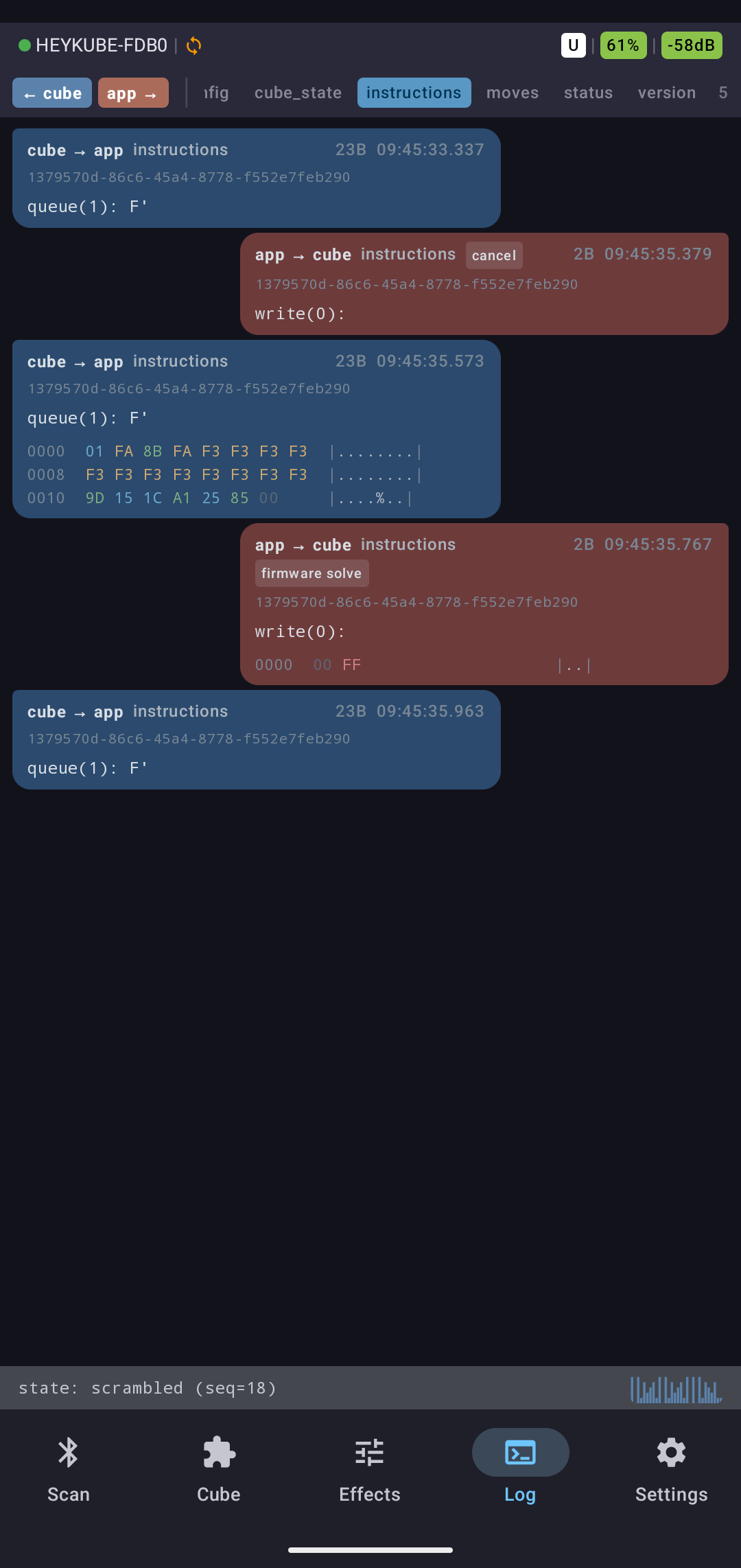
Every BLE message exchanged between the app and the connected cube is captured and displayed in the Log tab. Messages are color-coded by direction (app → cube vs cube → app) and show the raw hex payload, characteristic name, and timestamp.
Filtering by characteristic is available (cube_state, status, instructions, action, moves, version, battery, and others). This is primarily a developer tool but turned out to be useful for debugging physical cube behavior — when a cube isn't responding as expected, the raw log shows exactly what was sent and received.
The log buffer is ring-bounded to prevent unbounded memory growth. Auto-scroll tracks the latest message; the user can pause auto-scroll by scrolling up manually, then resume by scrolling back to the bottom.
Simulators
Both cube types have wire-compatible simulators — virtual devices that produce byte-for-byte identical wire-format responses to real hardware, routed through the same GATT paths.
Development convenience was part of it, but not the main point. The simulators mean every code path in the protocol layer, decoder, state machine and UI runs identically whether a physical cube is connected or not. No special-case branches for "this is simulated." The decoder receives bytes, not a flag.
HeyKube simulator
SimDevice intercepts characteristic reads and writes at the GATT layer. For every read it produces wire-format bytes identical to real firmware:
cube_stateread → encodes currentIntArray(54)as an 11-byte Lehmer code with sequence number and empty move historybatteryread → returns configurable voltage (3.0–4.2V)versionread → returns a synthetic version stringstatusread → returns the current LBL stage matching the decoded state
For writes to the instructions characteristic, the simulator parses the packed nibble array, queues the moves, and plays them out over time — firing cube_state and status notifications through the same dispatch path as real BLE notifications. The notification goes through handle_notification() → parse_cube_state() → state update → UI, exactly as it would from a physical cube.
# Simulator path for a cube_state read
app calls read_characteristic("cube_state")
  → SimDevice.handle_read("cube_state")
  → encodes IntArray(54) as 11-byte Lehmer + seq + moves + timestamp
  → returns raw bytes
  → same parse_cube_state() runs as for real hardware
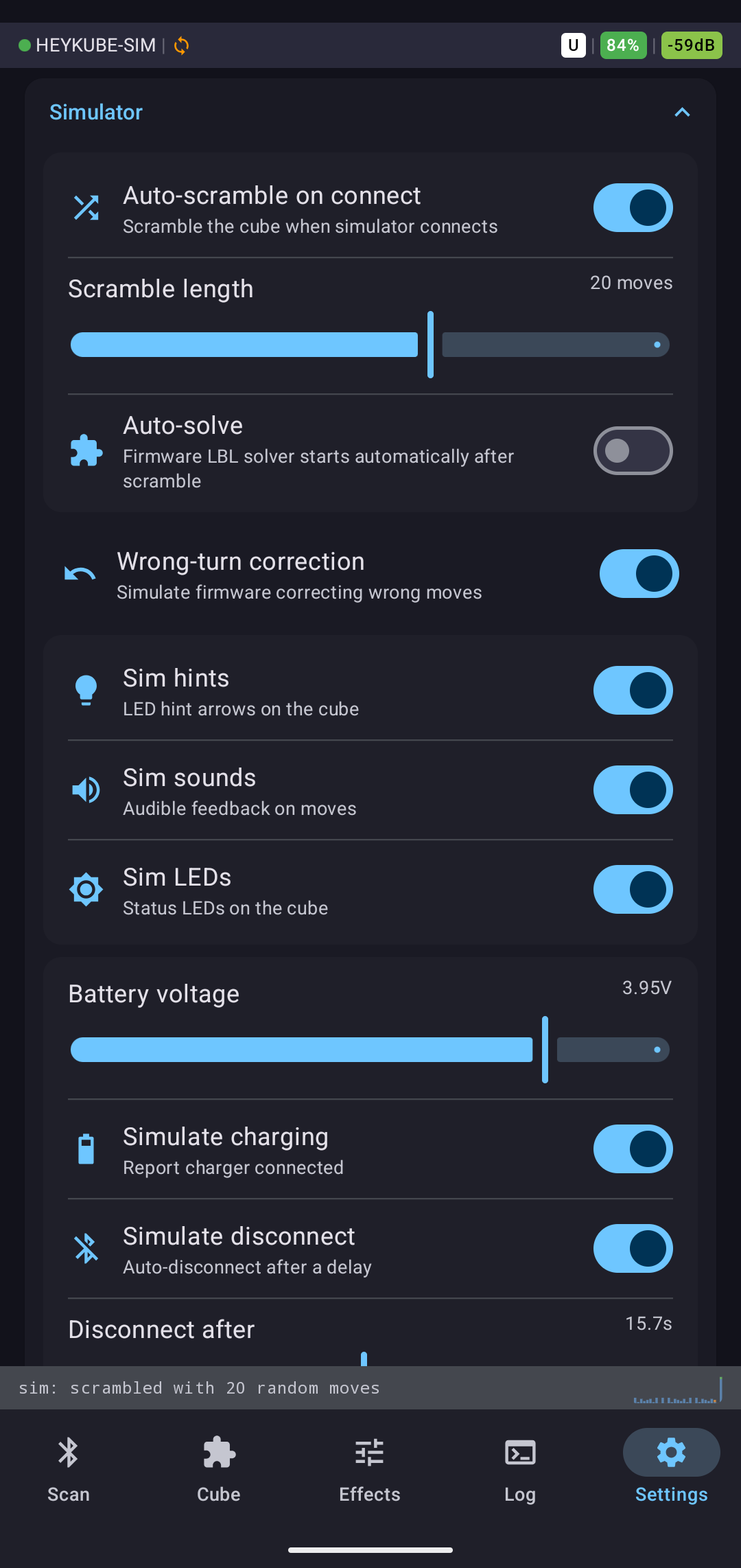
Additional simulator features: auto-scramble on connect (configurable length), auto-solve (configurable speed), wrong-turn correction (simulates firmware rejecting wrong moves), per-face LED simulation, sound simulation, and configurable auto-disconnect after a delay.
GoCube simulator
SimGoCubeDevice intercepts writes to the NUS write characteristic. For each recognized command it generates and dispatches the appropriate NUS-framed response:
GET_STATE(0x33) → encodes current state as 60-byte face-color payload, wraps in NUS frame, dispatches as notifyGET_BATTERY(0x31) → returnsMsgBatterywith 80%GET_CUBE_TYPE→ returnsMsgCubeTypewith the type byte- LED and orientation commands → no-op (no physical LEDs to simulate)
# Simulator path for a state request
app writes [0x33] → NUS write characteristic
  → SimGoCubeDevice.handle_command([0x33])
  → encodes IntArray(54) as GoCube face-color layout
  → wraps: 2a 40 02 [60 bytes] f3 0d 0a
  → dispatches notify → parse_notification() → decode_state() → state update → UI
Home Assistant integration
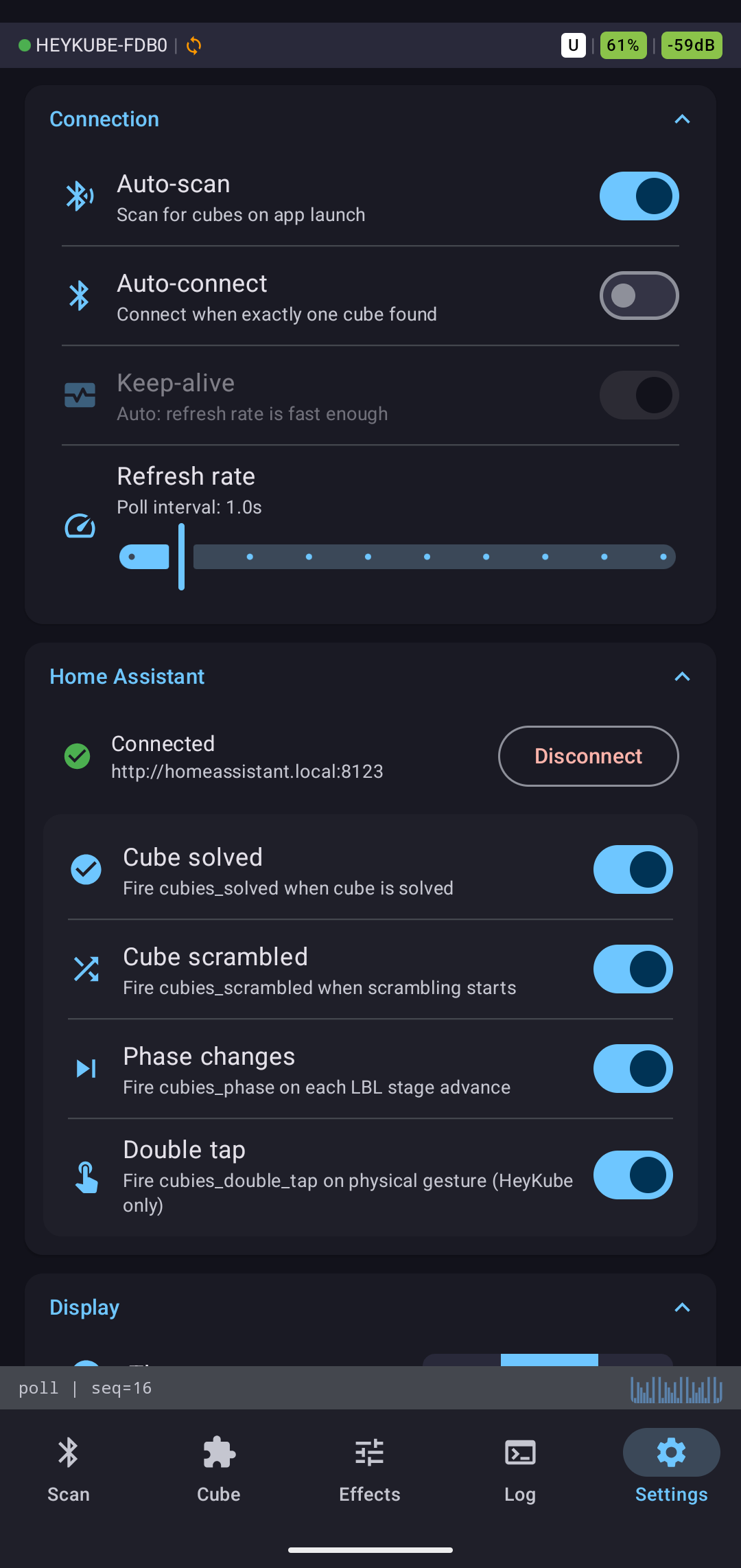
The app has a native MQTT integration that fires events to Home Assistant. On connect it authenticates and publishes to a device topic. The following events are configurable individually:
- solve — fired when the cube reaches the solved state
- scramble — fired when a scramble is sent to the cube
- phase_change — fired on every LBL stage transition with the new stage name
- double_tap — fired when the HeyKube IMU detects a double-tap gesture
No Home Assistant add-on is required — just an MQTT broker URL and a long-lived access token. The integration uses the standard HA MQTT discovery format so the cube appears automatically as a device in the HA dashboard.
Settings
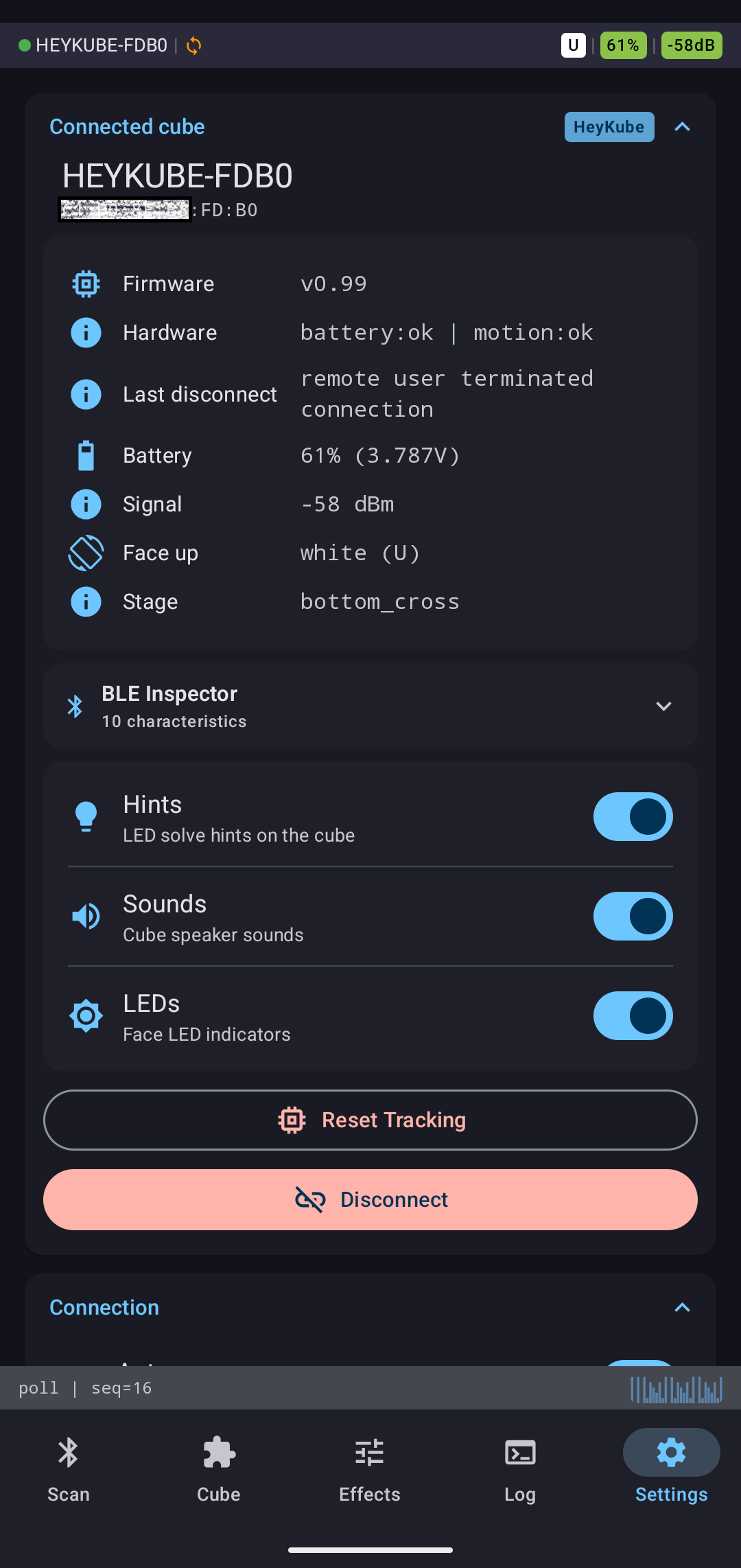
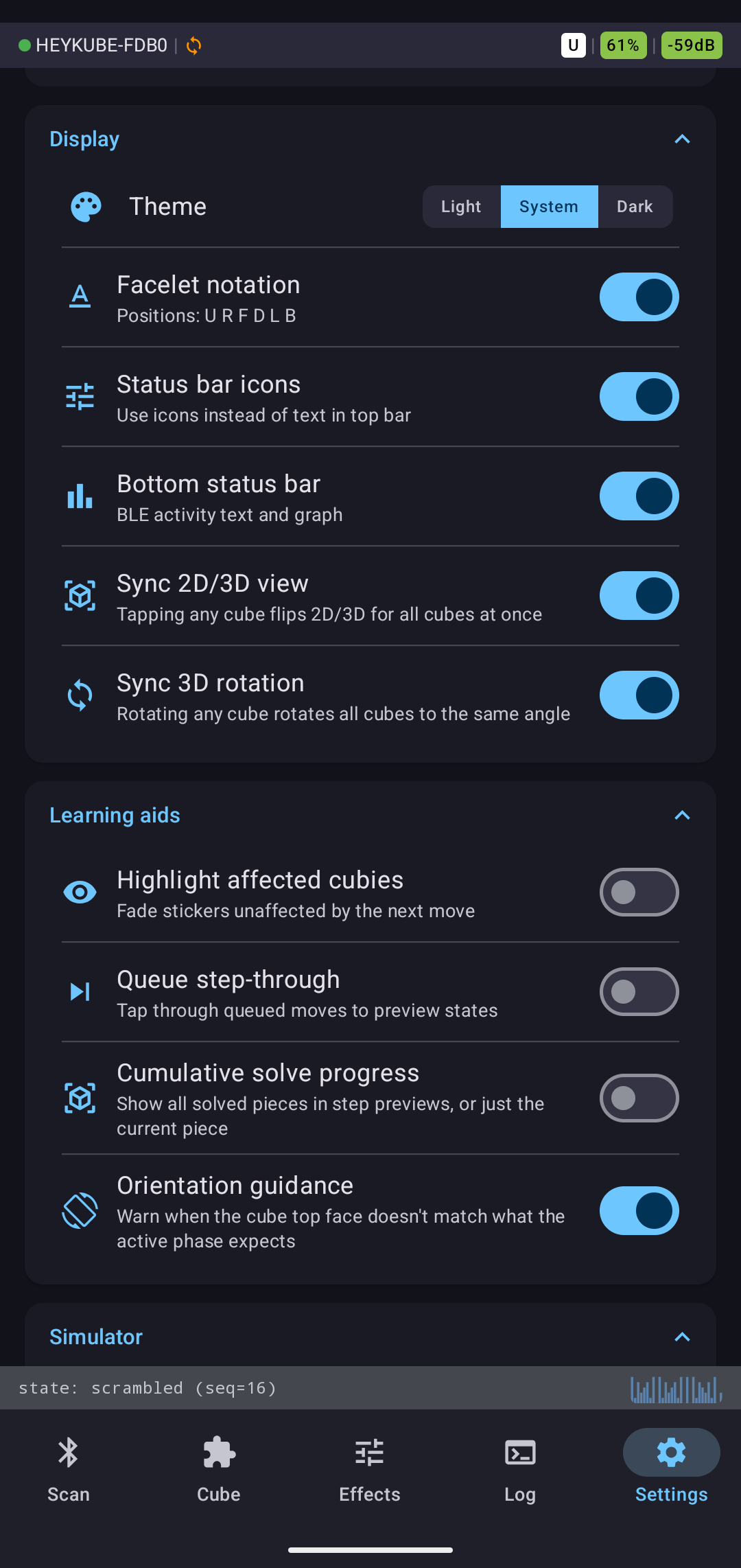
Settings are split into sections:
Connected cube — firmware version, hardware diagnostics (battery circuit, motion sensor), battery voltage, signal strength (RSSI), current face orientation, solve stage, and BLE inspector. Disconnect button. Hint/sound/LED toggles.
Connection — auto-scan on launch, auto-connect to last device, keep-alive polling interval, BLE poll rate. Keep-alive sends a periodic state request to prevent the cube from sleeping during idle periods.
Home Assistant — MQTT broker URL, access token input, per-event toggles, connection status.
Display — theme (light/system/dark), facelet label style (letters vs colors vs none), status bar format (text or icon mode), 2D/3D sync behavior (whether rotating the 3D view also rotates the 2D net), and the learning aid toggles (highlighting, orientation guidance, step-through, progress bar).
Simulator — full virtual cube configuration: auto-scramble length, auto-solve speed, wrong-turn correction toggle, hint/sound/LED simulation, battery voltage slider, simulate-charging toggle, and auto-disconnect with configurable delay.
What was learned
Building the app and learning to solve the cube at the same time meant every UI gap was experienced firsthand. Recognition hints came from staring at a 54-facelet diagram and having no idea which pieces mattered. Phase thumbnail highlights came from text descriptions that were not enough on their own. Step-through controls came from running a full seven-step algorithm, losing track of where you were, and having to start over.
CFOP came after finishing LBL: once the basic solve worked reliably, the next question was how to go faster. Case detection runs purely in software against the live state, so it works on both cube types even though only HeyKube can receive algorithms directly.
The simulators came from wanting to test full LBL and CFOP flows without draining cube battery or being near the hardware. Once the simulator produced identical wire bytes, the Log tab became the primary way to verify that simulated traffic matched captures from the real cube.
GoCube was added because a second protocol exposed places where the SmartCube abstraction was leaking HeyKube assumptions. Fixing those made the architecture cleaner.
Code
The full source is at github.com/7h3rAm/cubies. MIT license. No accounts, no analytics, no external services required for basic use. Full reverse-engineered protocol references for both cubes are in docs/cubes/.
app/src/main/java/com/cubies/app/
  ble/            BLE scan, connect, GATT read/write/notify, simulators
  cube/           State model, rotation tables, LBL phases, CFOP detection,
                  Kociemba solver, practice cases, scramble generation
  protocol/       Packet parsers and builders (heykube/, gocube/)
  simulator/      SimDevice (HeyKube), SimGoCubeDevice (GoCube)
  ui/screens/     Compose screens: Scan, Solve, Scramble, Patterns, Effects, Log, Settings
  MainViewModel.kt
  MainActivity.kt
Requires Android 8.0+ (API 26). BLE is only needed for physical cubes — the simulators work without any Bluetooth hardware.